Waiting Lists
Waiting Lists can be used to manage both last minute patient enquiries as well as cancellations.
Written By Thomas Wojtowicz
Last updated About 1 month ago
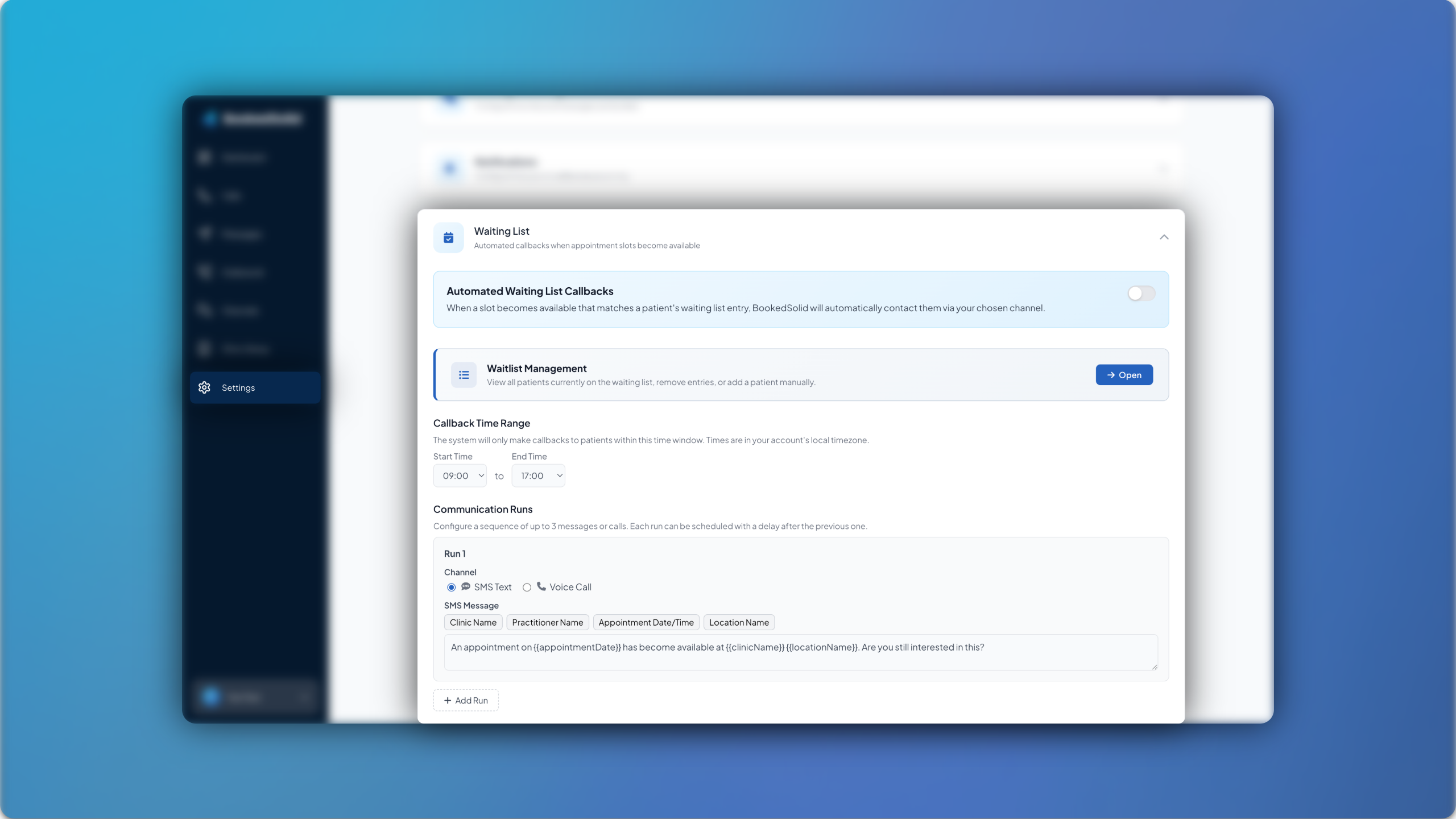
When enabled, patients will be prompted to join the Waiting List if they enquire about an appointment slot that is currently unavailable. In the event of a cancellation, the patient on the Waiting List will be contacted automatically and given the opportunity to book the appointment slot.
Setting Up Waiting Lists
The first step to setting up Waiting Lists is to head into Settings > Waiting List and toggle the feature switch on. You can then select the hours in which you are happy for your patients to be contacted.
Under Run 1 you can configure whether patients are contacted about new availabilities via calls or SMS, along with the specific text that is sent. You can add multiple runs across different channels as well as any custom instructions (optional).
You can then choose what time of day the patients are contacted along with any instructions. Once you’re all set, hit Save Settings.
Manual Waitlist Management
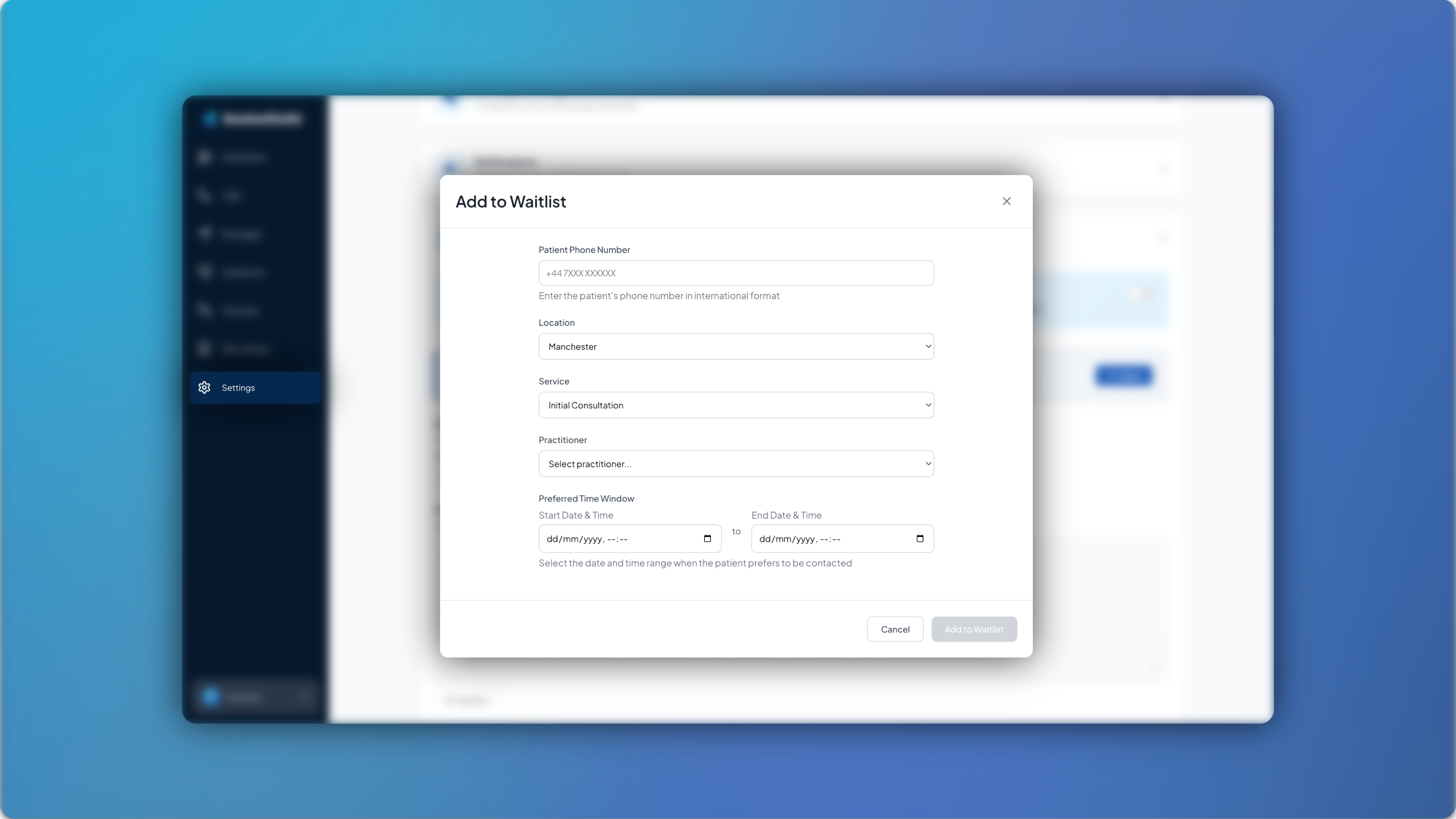
To add patients to a Waiting List manually, click on Open under Manual Waitlist Management. You can then click on + Add New Entry, allowing you to enter the following details for the patient you wish to add:
Patient Phone Number
Location (if applicable)
Service/Appointment type
Practitioner
Preferred Time Window
You can then click Add to Waitlist to complete the entry.
You can view the patients currently on a Waiting List at any time by clicking on Manual Waitlist Management.
For any questions, feel free to email us at support@bookedsolid.co.uk.