Appointment Reminders
Appointment Reminders can be scheduled to confirm patient attendance for upcoming appointments, allowing the patient to reply directly to the reminder.
Written By Thomas Wojtowicz
Last updated 6 months ago
Creating a New Instance
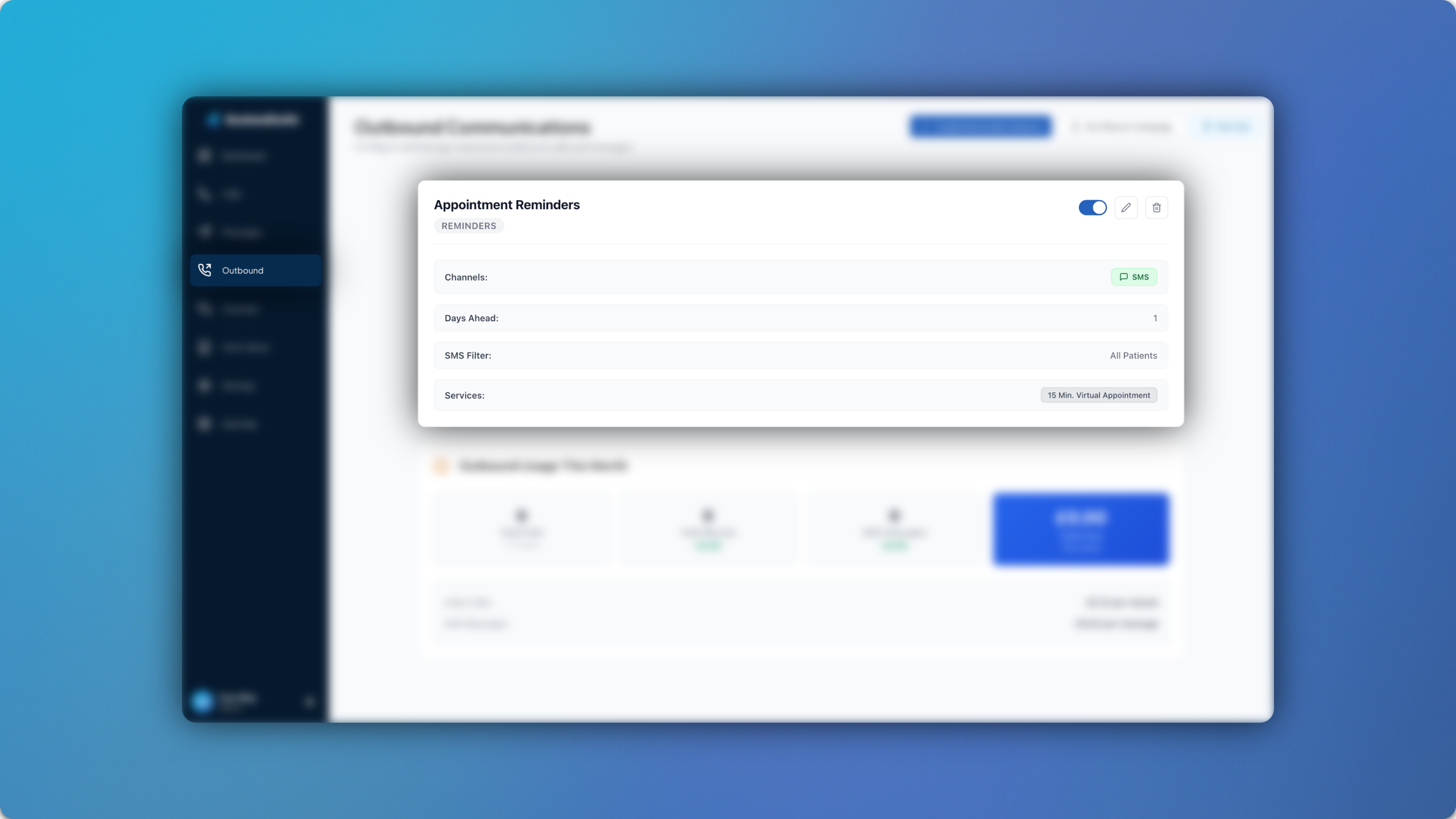
The first step to setting up Appointment Reminders is to create a new instance in Outbound > Create Automatic Instance > Appointment Reminders. You can then select a name for the reminder instance.
Under Run 1 you can configure whether the Appointment Reminders are sent via calls or SMS along with the specific text that is sent. You can add multiple runs across different channels.
You can then choose what time of day and how many days ahead of the appointment the Appointment Reminders send, along with which appointment types you want them to run on.
You can also choose to enable Incomplete Reminder Emails. These notifications are sent via email when patients fail to respond to an Appointment Reminder. This is a platform wide feature, which means it will apply to all Appointment Reminder instances for your account.
Once you’re all set, hit Create Instance.
Selecting Instances
Once an instance has been created, it will appear in the main Outbound Communications page. New Appointment Reminder instances can be created for different variables, such as different appointment types.
All instances will show in the main page, where you can enable/disable them accordingly. You can track your overall usage across the Outbound Module at the bottom of the page, along with a cost breakdown.
For any questions, feel free to email us at support@bookedsolid.co.uk.